Turn the computer you own into your private photo library
Back up your phone photos to your own computer in full original quality, then browse everything on it from your phone over home Wi‑Fi. No iCloud subscription, no NAS to set up.
Phone app for iPhone and Android. Computer app for Mac and Windows.
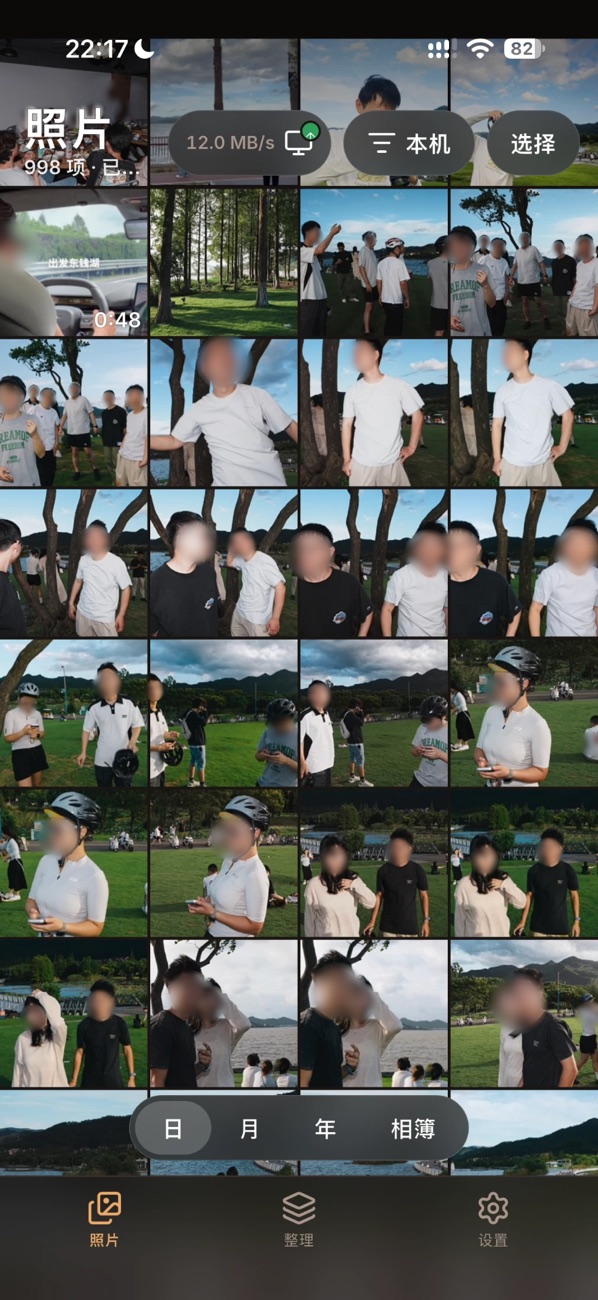

Three steps to bring your photos home
Most homes already have a computer with spare disk space. Let it be your library.
Install it on your computer
Pick a folder for your library, an external drive works too. A pairing QR code appears on screen.
Scan to pair your phone
Match the same number on both devices and confirm on the computer. After that they connect automatically on the same Wi‑Fi.
Open the app to back up
Everything the first time, only new photos after that. Browse your whole computer library from your phone.
Originals, untouched
Your computer receives the exact files on your phone. Never re-encoded, never compressed.
- HEIC, RAW and video kept as-is, with capture dates, locations and EXIF
- Live Photos on iPhone backed up as a pair; edited photos keep the original too
- On iPhone, originals stored only in iCloud are downloaded first, with your permission, never replaced by thumbnails
- Every file is verified on the computer before it counts, and interrupted transfers resume
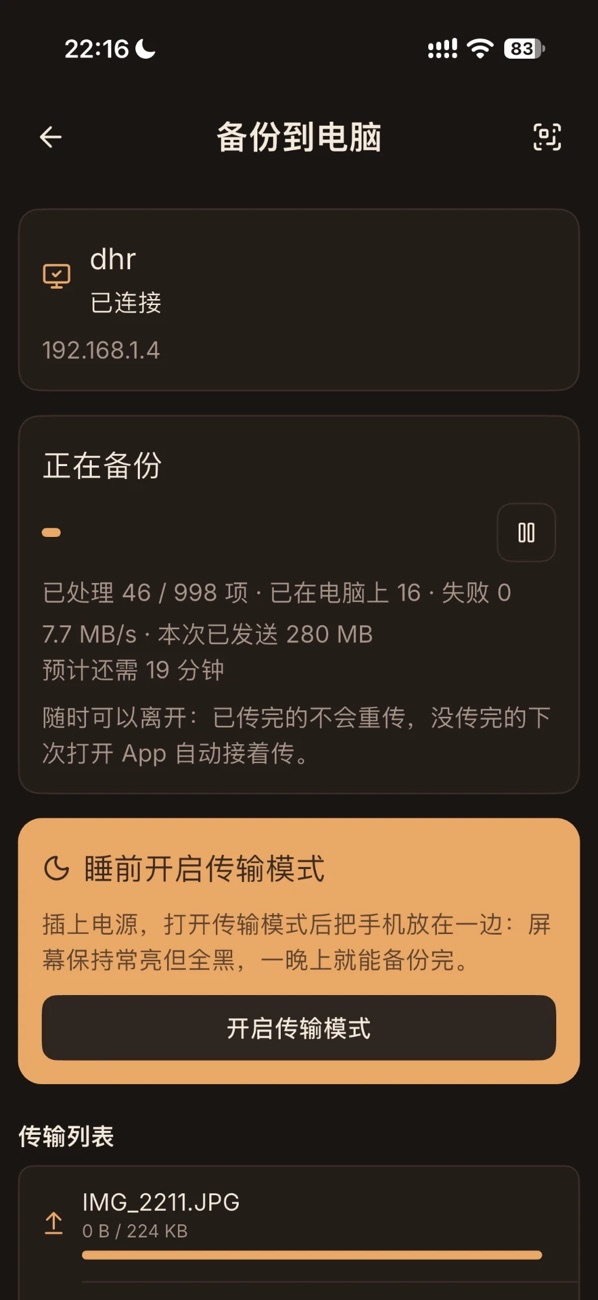
Your whole library on your phone
Delete photos from your phone to free up space, and still find them any time.
- Browse by day, month or year, with your phone and your computer on one timeline
- Photos only on the computer show a cloud mark and open in full size, including videos and Live Photos
- Save any original back to your phone, with Live Photos restored as a pair
- Browse by album, matching the albums on your phone
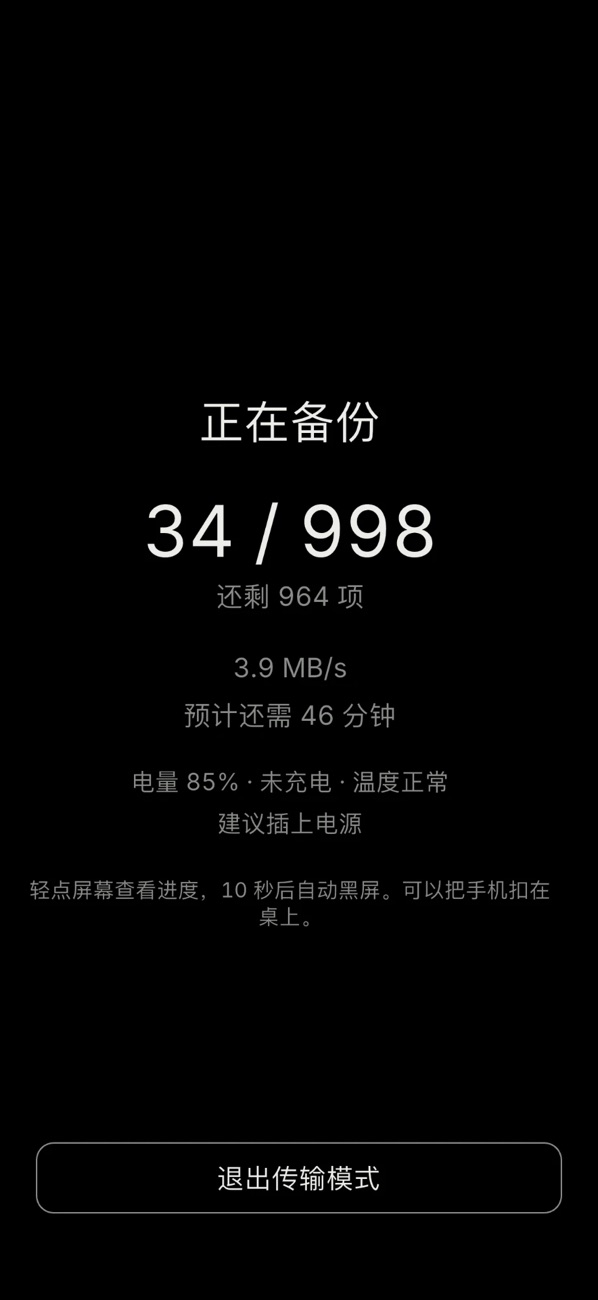
Tens of thousands of photos, overnight
Plug in at night, turn on Transfer Mode, and it is done by morning.
- Transfer Mode sends at full speed; the screen goes black after 10 seconds to save power
- Everyday backups are rate-limited so your phone stays cool
- Your computer stays awake while transferring, then goes back to normal
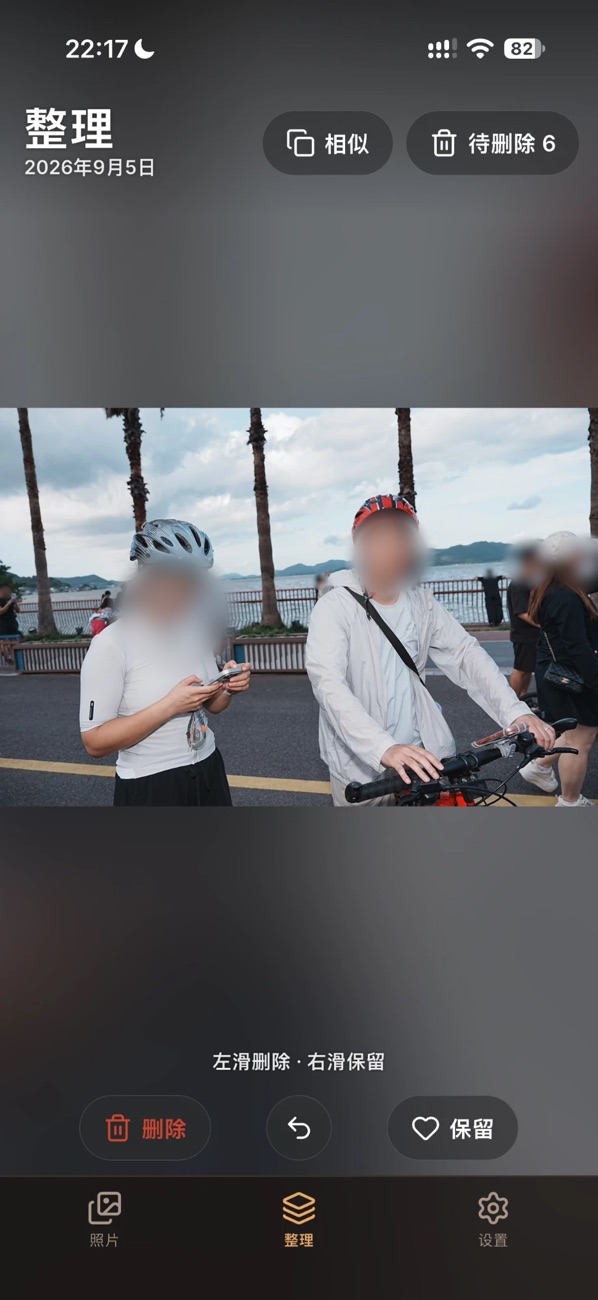
Free up space safely
You always decide what to delete, and the copy on your computer stays.
- Only photos whose originals are all verified on the computer can be deleted
- The system asks you to confirm, and deleted items go to the system trash first
- Quick review: swipe left to mark for deletion, right to keep, with undo
- Similar photos (iPhone): find bursts and near-duplicates and choose which to remove
Your photos stay at home
No cloud servers, no account, and no lock-in.
Local network only
Photos travel only over your home Wi‑Fi, never through a cloud server. Your phone only trusts the computer it paired with.
Plain folders
Readable file names, original formats, organised like the albums on your phone. Open it ten years from now without this app.
A backup, not a mirror
Deleting in your phone's photo gallery never deletes files on your computer. Items deleted in the library go to a trash you can restore from for 30 days.
Download
Install one app on your phone and one on your computer, then pair once.
Phone
Computer

FAQ
Does my computer need to stay on?
To back up and to browse photos on the computer, it needs to be on and on the same Wi‑Fi as your phone. Away from home, you can still see your phone's photos, the last synced timeline and cached thumbnails. To stop the computer from sleeping while plugged in, see the Mac guide and the Windows guide.
Are my photos compressed?
No. Original files are transferred as-is. HEIC, RAW and video are kept untouched, with capture dates, locations and EXIF.
Are my photos uploaded to the internet?
No. Hamster PhotoBackup works only on your home network. No cloud servers and no account.
If I delete photos from my phone, are they still on my computer?
Yes. Deleting in your phone's photo gallery or freeing up space never deletes files on your computer. Only deleting inside the Hamster PhotoBackup library syncs to all devices, and it goes to the trash first.
What about several phones in one family?
Pair them all with the same computer. Each phone gets its own folder, identical photos are stored once, and you can filter by device on the computer.
What if I stop using the app?
Your library is a plain folder on your computer with readable file names and original formats. Open it in Finder or File Explorer.