 Hamster PhotoBackup
Hamster PhotoBackup: Keep Your Mac Awake
Hamster PhotoBackup uses this Mac as the home for your photos: backing up from your phone and browsing the Mac's library on your phone both need to reach this Mac. Once the Mac goes to sleep, your phone can no longer find it.
While a transfer is running, Hamster PhotoBackup keeps the Mac awake by itself. The rest of the time the Mac still sleeps according to its system settings, and your phone can't connect the next time you open the app. So it's worth changing the setting below once. The display can still turn off as usual; only the computer itself needs to stay awake.
Also keep three things in place: the Mac is plugged in, Hamster PhotoBackup is open (minimizing is fine, but closing the window quits the app), and your phone and Mac are on the same Wi‑Fi.
MacBook (laptops)
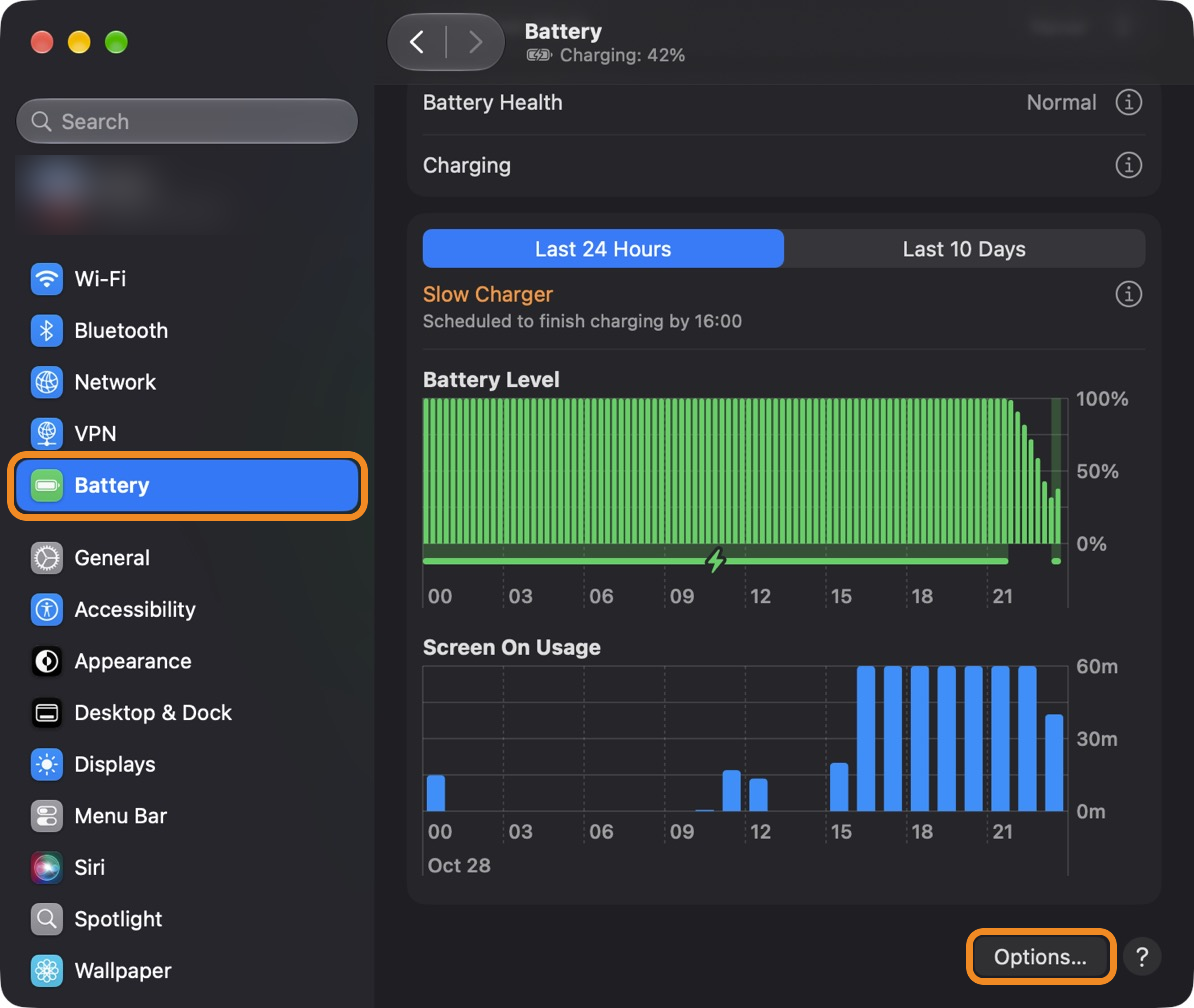
Step 1 Choose Apple menu > System Settings, click Battery in the sidebar, then click Options… at the bottom right.
Step 2 Turn on "Prevent automatic sleeping on power adapter when the display is off", then click Done.
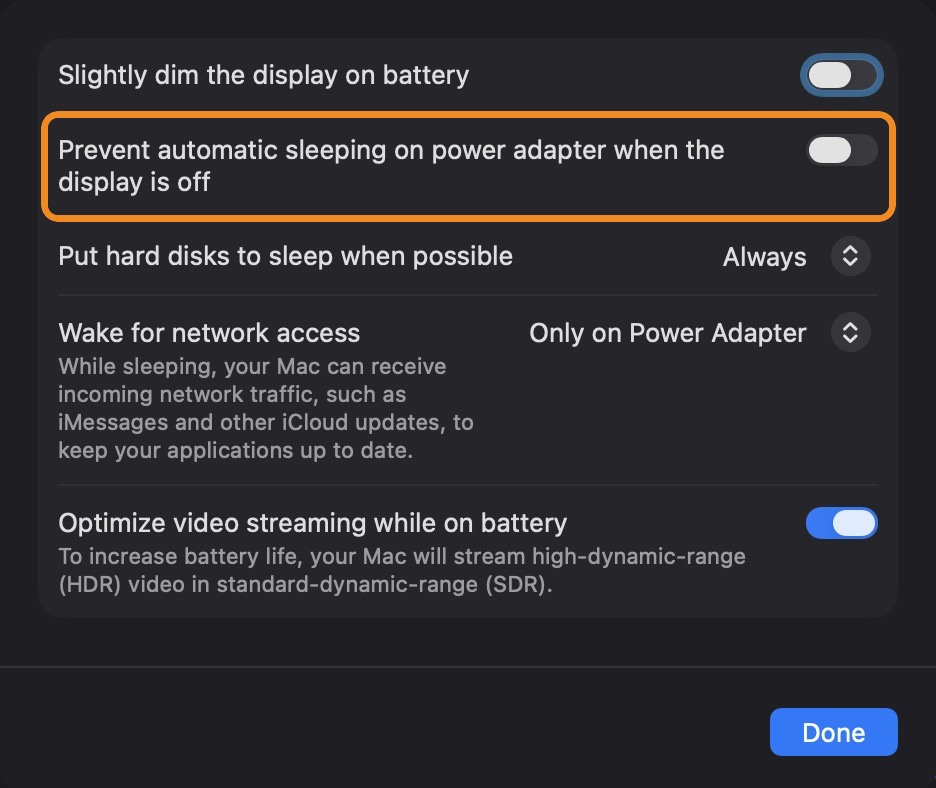
From now on the Mac won't fall asleep on its own while it's plugged in, even when the display is off.
Keep the lid open. A MacBook still sleeps when you close the lid (unless it's connected to power, an external display, and a keyboard and mouse). Leave the lid open while backing up; turn the brightness all the way down or let the display turn itself off if the light bothers you.
iMac, Mac mini, Mac Studio and other desktop Macs
Open System Settings, click Energy in the sidebar, and turn on "Prevent automatic sleeping when the display is off".
Still can't connect?
Check that the Mac isn't asleep, Hamster PhotoBackup is open, and your phone and Mac are on the same Wi‑Fi network (some routers isolate devices on the guest network, so use the main one). A locked screen doesn't affect the connection.
Screenshots are from macOS 27; the settings are in the same place on macOS 13 Ventura and later.